
Corrupted transaction data may be causing the following error when working in QuickBooks Desktop:
Problem: Some Sales Orders or Estimates may be incorrectly marked as closed or display incorrect invoiced quantities.
To troubleshoot this error, you need to locate and repair the damaged transactions.
- Identify the affected transactions.
- Verify your company file's data integrity by going to File > Utilities > Verify Data.
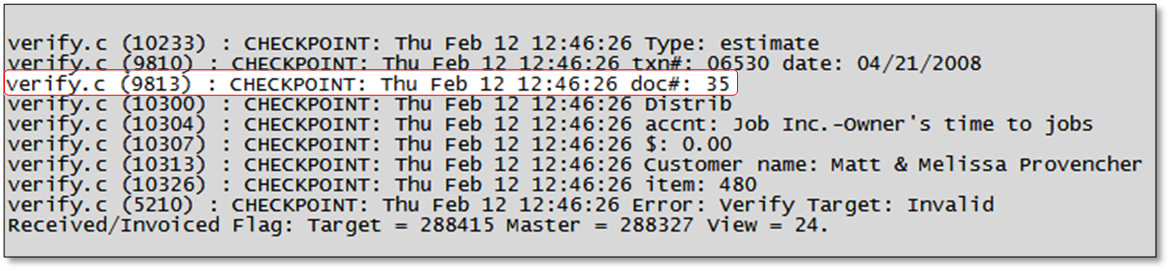
- To identify the corrupted transactions, open QBWin.log.
- A typical Sales Order or Estimate in QBWin.log will look like the image below. Write down the doc# for every damaged transaction.
- Create a Custom Transaction Detail report to locate the damaged transaction in QuickBooks.
- From the Reports menu, select Custom Reports and choose Transaction Detail.
- On the Display tab, set the date range for the affected transactions.
- In the Columns section, select Trans #.
- Go to the Filters tab.
- Search for and select the Transaction Type filter, then click the drop-down menu to select your desired transaction type.
- Search for and select the Posting Status filter, then choose Non Posting.
- To generate the report, click OK.
- In the upper right, select the Sort By drop-down and choose Trans #.
- Repair the affected transactions.
- Find the doc# on the report.
- QuickZoom (double-click) on the transaction.
- Follow these steps to repair the transaction.
Tip! Adding a period to a field in a transaction and saving it is usually sufficient to repair the transaction. If that doesn't work, try each of the repair solutions until you find one that works in your situation.
- Repeat steps 1-3 for all damaged transactions.
- To make sure all damaged transactions are now fixed, verify your data again.