
Learn how to keep QuickBooks up-to-date so you have the latest features and product improvements.
QuickBooks automatically downloads and installs the latest updates when they're available. You can also run the update manually yourself.
This is different than updating your company file after you switch to a newer version or edition of QuickBooks Desktop.
QuickBooks Desktop for Windows
Here's a quick video that shows you how to update within QuickBooks.
To watch more how-to videos, visit our video section.
To update your server Manager, check out Install, Update, and Set up the QuickBooks Database Server Manager.
Check to see if you have the latest release
- Open QuickBooks Desktop.
- Press F2 (or Ctrl+1) to open the Product Information window.
- Check your current version and release.

See if you have the latest release available for your QuickBooks Desktop version:
- QuickBooks 2024 R6_60
- QuickBooks 2023 R11_35
- QuickBooks 2022 R14_47
- QuickBooks 2021 R17_21
Install the update
QuickBooks will automatically download updates when they're available. When the update is downloaded, you'll see Update available on the status bar in the top right corner. The next step is to install the update. The update will install automatically if you close the product and keep the system/PC switched on. Here's how you can manually install the update:
- Select Update available then select Install now to install the update.
- Sit back and relax while the update is getting installed. It might take a while for the update to be installed.
- Open QuickBooks once the update is installed.
If you have a Payroll subscription, download the latest payroll tax table so you can process payroll in QuickBooks. Keep in mind, your Payroll subscription must be active.
Unable to install the update
Sometimes, an update won’t advance to the next release number. Or you may encounter an error during the update installation. Here's how you can fix these issues.
Solution 1: Download the update again
Repeat these steps a couple of times to see if the release number advances.
- Go to Help and select Update QuickBooks Desktop.
- Select Update Now, then Get Updates.
- Close and reopen QuickBooks to install the update again.
If the release number doesn’t advance, try Solution 2.
Solution 2: End task on the following processes
- Close QuickBooks.
- Right-click on the taskbar, then select Task Manager.
- Under the details tab, look for the following background processes to select and End task for each.
- QBW32.exe or QBW.exe
- QBCFMonitorService.exe
- qbupdate.exe
- QBDBMgr.exe or QBDBMgrN.exe
- QBMapi32.exe
- Right-click on the QuickBooks shortcut and select Run as administrator.
- Run the update again.
QuickBooks Desktop for Mac
Check to see if you have the latest release
- Open QuickBooks Desktop for Mac.
- Press Command + 1 to open the Product Information window.
- Check your current version and release.

The current release can be found in the release notes for each version of QuickBooks Desktop for Mac:
- QuickBooks Mac Plus 2024 R3_2
- QuickBooks Mac Plus 2023 R6_2
- QuickBooks Mac Plus 2022 R11_2
- QuickBooks Mac 2021 R14_2
Update manually
- Go to the QuickBooks menu and select Check for QuickBooks Updates.
- Select Install and Relaunch.
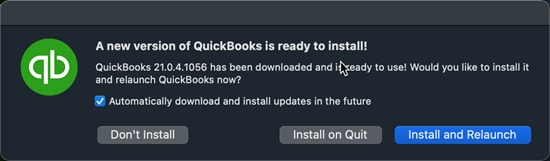
Note: To make sure updates automatically install in the future, select Automatically download and install updates in the future.
Unable to install the update
Sometimes, an update won’t advance to the next release number. Or you may encounter an error during the update installation. Here's how you can fix these issues.
Solution 1: Download the update again
Repeat these steps a couple of times to see if the release number advances.
- Open the QuickBooks menu, then select Check for QuickBooks Updates.
- Select Install and Relaunch.
If the release number doesn’t advance, try Solution 2.
Solution 2: Get updates from our download site
- Go to the Downloads & Updates page and select the standard setup.
- From the Select Country dropdown, select your country.
- From the Select Product dropdown, select your product.
- From the Select Version dropdown, select your version (year).
- Select Search.
- Select Get the latest updates.
- When the download finishes, open the file to install the update. After the install, restart your computer.